PerseusVectorConstraint Plug-in
for
Unreal Engine Control Rig

Introduction
The Perseus Vector Constraint plugin for Unreal Control Rig introduces two powerful nodes:
- VectorConstraint
- VectorConstraintNormalizer
This plugin is based on my earlier prVectorConstraint plugin for Maya, which I developed a few years ago. With Unreal Control Rig becoming increasingly robust, I decided to bring the same functionality to Unreal Engine.
What Does It Do?
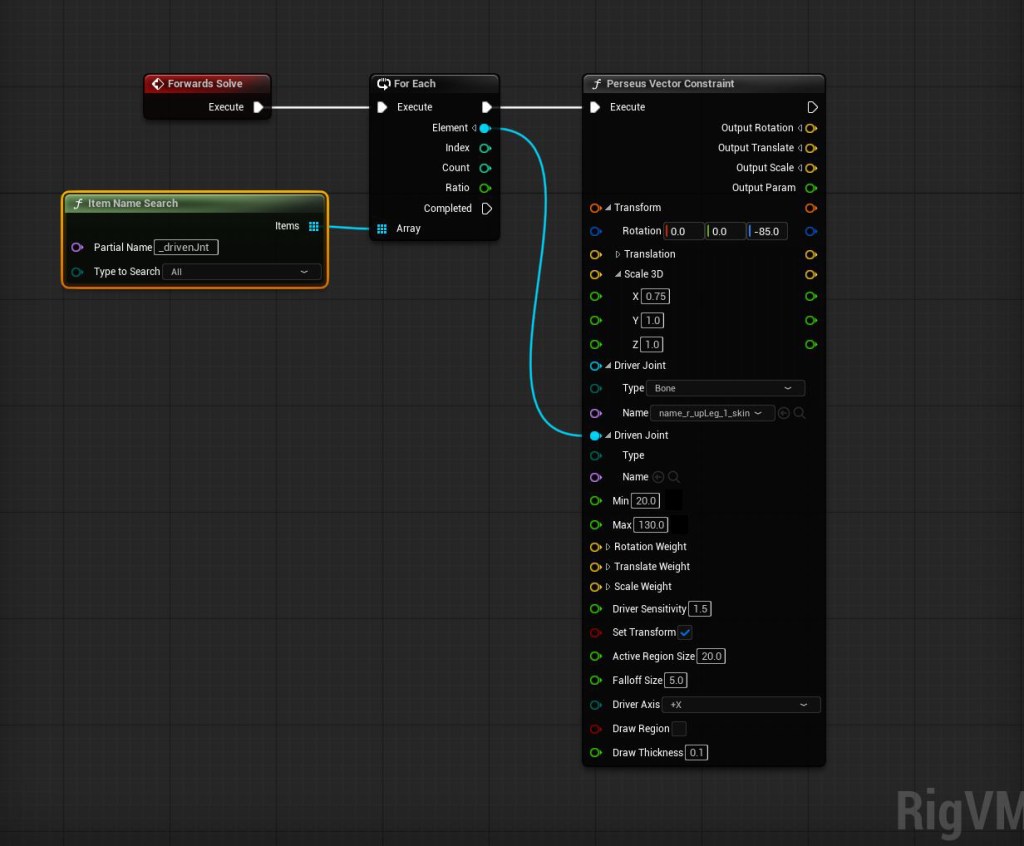
The plugin creates a constraint system driven by the angle between two vectors. This allows you to control how much rotation, translation, and scale is applied to the driven joint, based on the driver’s rotation.
Input Parameters
- Transform – Defines how much rotation, translation, and scale is applied to the driven joint.
- Driver Joint – The joint driving the transformation.
- Driven Joint – The joint receiving the transformation.
- Old Min – The minimum angle (between driver and driven) where the constraint begins to affect the driven joint.
- Old Max – The maximum angle where the effect reaches its limit.
- Rotation Weight – Multiplies the rotation values of the Transform input.
- Translate Weight – Multiplies the translation values of the Transform input.
- Scale Weight – Multiplies the scale values of the Transform input.
- Driver Sensitivity – Controls how quickly the driven joint responds. Increasing this value narrows the effective range (Old Min and Old Max) without reducing the driver’s influence. Example: in skirt rigs, raising this value along with Old Min reduces the number of affected driven joints while maintaining driver influence.
- Set Transform – When enabled, the driven joint is moved directly. For setups with multiple drivers or when adding secondary motion (e.g., spring interpolation), you can disable Set Transform, use the output translation, and then pass it through a spring or Verlet interpolation node before applying the final transform.
- Active Region Size – Determines how far from the driver the driven joint is influenced.
- Falloff Size – Defines how gradually the influence weakens over distance.
- Driver Axis – Defaults to +X (X pointing down on the driver joint). If another axis is oriented downward, this parameter can be adjusted accordingly.
- Draw Region – Displays a circle showing the active region size.
- Draw Falloff – Displays a circle showing the falloff region size.
VectorConstraintNormalizer
When a driven joint is influenced by multiple driver joints, double transformations can occur. To prevent this, we use the VectorConstraintNormalizer node.
For example, joints located between the left and right legs of a character’s skirt may need clamping when both legs move forward (e.g., in a sitting pose). We can Solve this by:
- Disabling Set Transform on the main VectorConstraint node.
- Connecting each transform output to the VectorConstraintNormalizer.
- Feeding the max transform limit from each VectorConstraint into this node.
- Enabling the appropriate transform options.

License
prVectorConstraint is under the terms of the MIT License
Copyright (C) 2017-2023 Mohammad Jafarian
Permission is hereby granted, free of charge, to any person obtaining a copy of this software and associated documentation files (the “Software”), to deal in the Software without restriction, including without limitation the rights to use, copy, modify, merge, publish, distribute, sublicense, and/or sell copies of the Software, and to permit persons to whom the Software is furnished to do so, subject to the following conditions:
The above copyright notice and this permission notice shall be included in all copies or substantial portions of the Software.
THE SOFTWARE IS PROVIDED “AS IS”, WITHOUT WARRANTY OF ANY KIND, EXPRESS OR IMPLIED, INCLUDING BUT NOT LIMITED TO THE WARRANTIES OF MERCHANTABILITY, FITNESS FOR A PARTICULAR PURPOSE AND NONINFRINGEMENT. IN NO EVENT SHALL THE AUTHORS OR COPYRIGHT HOLDERS BE LIABLE FOR ANY CLAIM, DAMAGES OR OTHER LIABILITY, WHETHER IN AN ACTION OF CONTRACT, TORT OR OTHERWISE, ARISING FROM, OUT OF OR IN CONNECTION WITH THE SOFTWARE OR THE USE OR OTHER DEALINGS IN THE SOFTWARE.
Installation
- Copy the PerseusRigging folder into your project’s Plugins folder.
- Open your project, go to Edit > Plugins, search for PerseusRigging, and make sure it is enabled.

 PERSEUS AUTO RIG